

Table of Contents
BitLocker is a powerful encryption tool built into Windows, but it can be frustrating if you get locked out. The key to avoiding lockouts is managing your recovery keys properly, and if you do get locked, recovery is possible with the right steps.
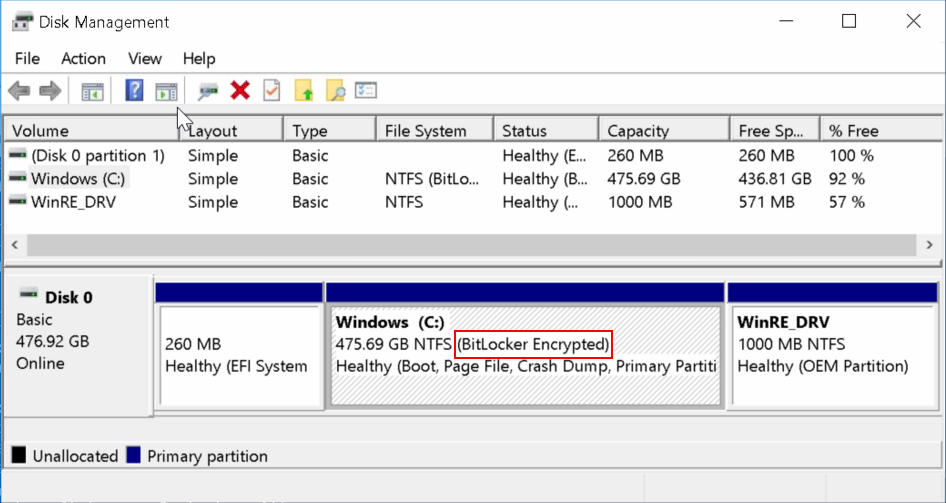
 BitLocker is Microsoft’s full-disk encryption feature designed to protect sensitive data from theft or unauthorized access. While it’s a strong safeguard, many users encounter the dreaded BitLocker Recovery screen or find themselves locked out of their own files. Let’s break down how to prevent this, and what to do if it happens.
🚫 How to Avoid Being Locked Out
BitLocker can trigger lockouts after hardware changes, BIOS updates, or forgotten recovery keys. Here’s how to stay safe:
-
Back up your recovery key
- Save it to your Microsoft account, a USB drive, or print a physical copy.
- Never rely on memory alone—without the recovery key, access is impossible.
- Disable automatic device encryption (if not needed)
- On Windows 11, BitLocker may be enabled by default. You can turn it off in Settings > Privacy & Security > Device Encryption.
- Update drivers and firmware carefully
- Sudden hardware changes (like swapping motherboards or drives) can trigger BitLocker recovery mode. Always back up your key before making changes.
- Check your account settings
- If you’re signed in with a Microsoft account, your recovery key is often stored automatically online. Verify this before emergencies.
📂 How to Recover Files from a BitLocker Drive
If you’re locked out or the drive is damaged, recovery is possible:
- Use the recovery key
- Enter the 48-digit recovery key when prompted to unlock the drive.
- Windows built-in tools
- Use
manage-bde(command-line) or BitLocker Repair Tool (repair-bde) to recover data from corrupted drives.
- Use
- Third-party recovery software
- Tools like MiniTool, MyRecover, or UFS Explorer can help extract files if the drive is accessible but Windows won’t boot.
- Professional data recovery
- If metadata is damaged or the drive is physically failing, specialized recovery services may be required.

📝 Final Thoughts
BitLocker is excellent for protecting sensitive information, but your recovery key is your lifeline. Always store it securely in multiple places. If you’re locked out, don’t panic—Windows tools and recovery software can often restore access, provided you have the key. Without it, even Microsoft cannot bypass the encryption.