

December of 2018 when IRC (Internal Revenue Commission) started to inform all payroll masters that a new Salary or Wage Tax will be used for payroll effective January 1, 2019.
As soon as the memorandum was released, Able Home and Office produced its tax update file and was sent to all the clients for software update.
For those who haven’t done it yet, here is the procedure on how your Able Payroll be 2019 tax update. Below are the steps to follow
- Secure the copy of taxupdate.stu. taxupdate.stu is the file that you need to update your Able Payroll, You can get it from Able Home and Office and look for software division.
- Copy from where you downloaded it, for example in the download folder. Right click from the
file and click Copy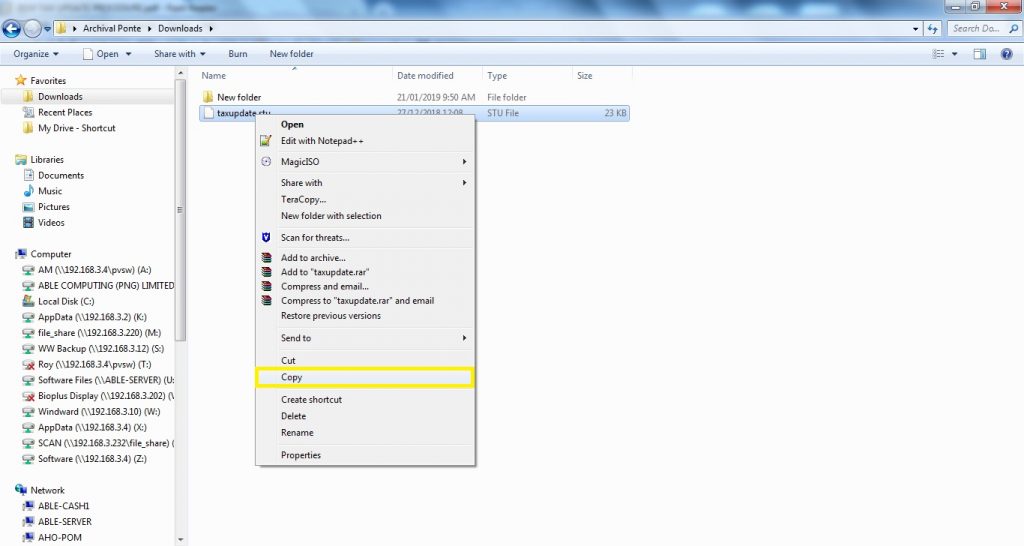
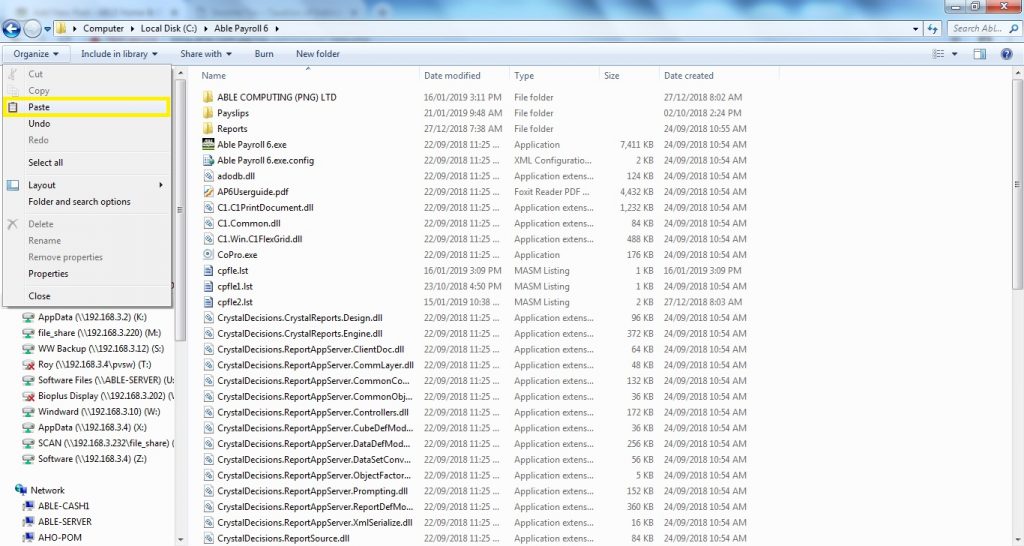
- Go to the latest Able Payroll folder most specifically your 2019 able payroll folder. For example C:\Able Payroll 6, navigate to that folder and paste it by clicking Organize > Paste
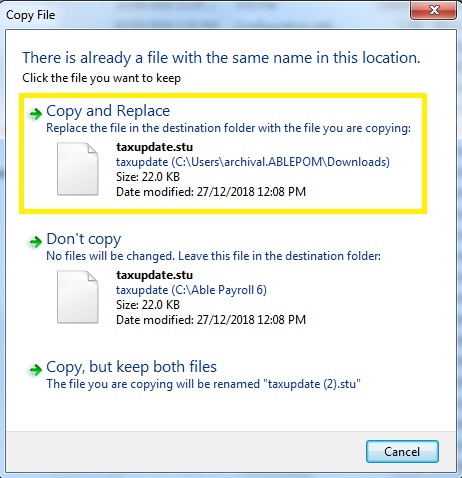
 Once it shows you this prompt, just select Copy and Replace
- Still inside the Able Payroll 6 folder, Navigate and find DBUpgrade.exe, Double click to
open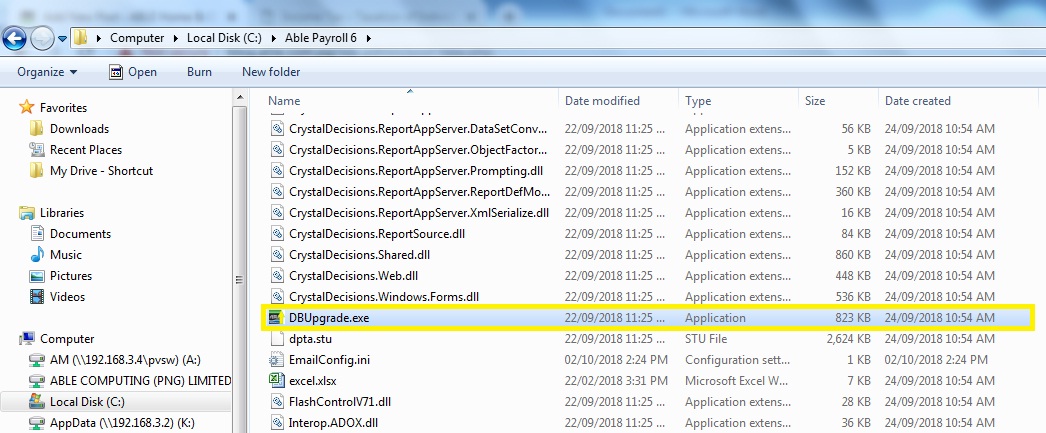 This is how it looks like when opened
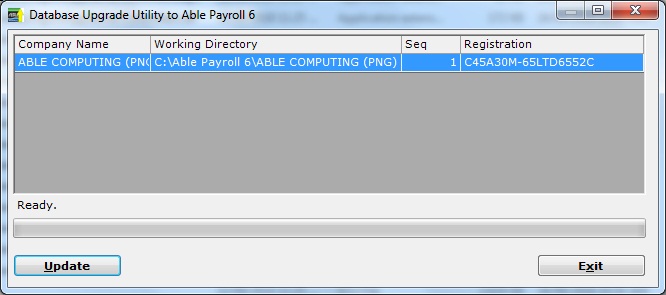
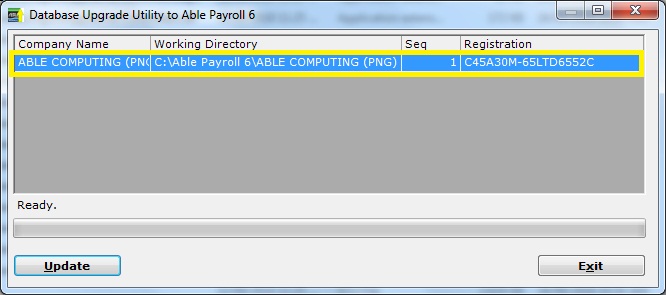
- Select the company that you wanted to update by clicking the Company Name, For you to know that the company file was selected is that, It will be highlighted. In this example it is highlighted with blue
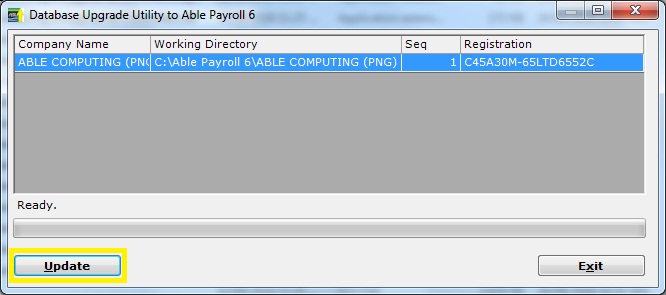
Press Update
Wait until if finishes and shows this prompt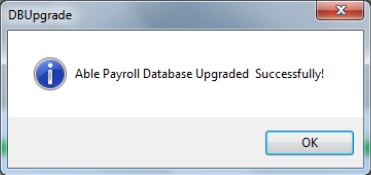
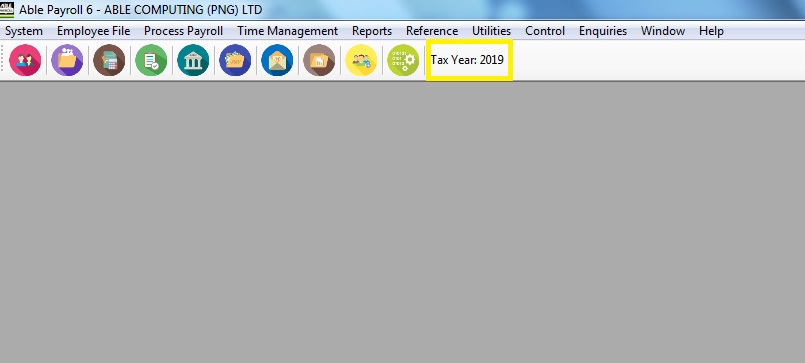
- Login inside the system to confirm the tax update. It should show 2019 on “Tax Year : ” of the menu bar
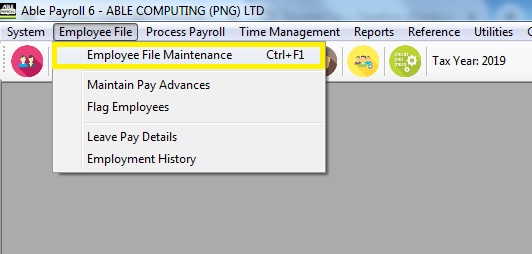
- Go to Employee File > Employee File Maintenance to update the records of each employee’s standard pay
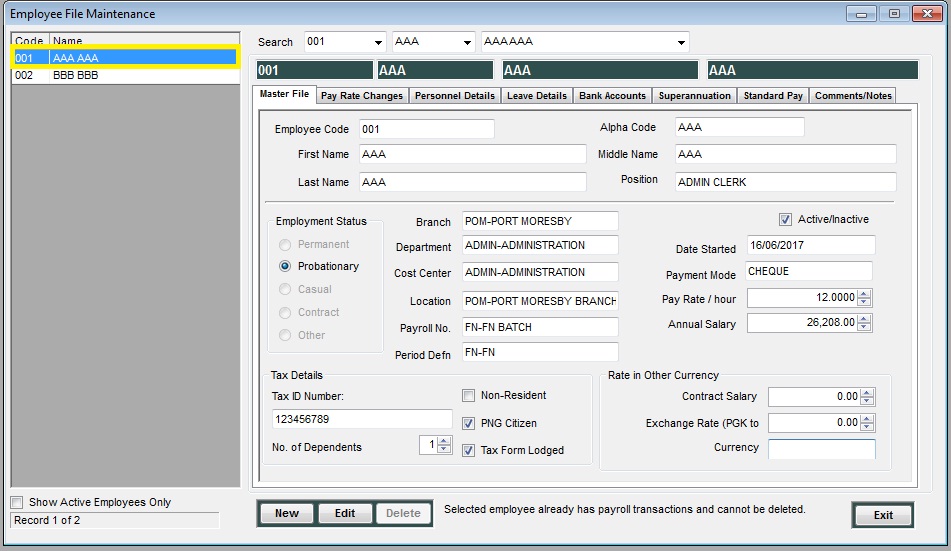
 Once the Employee File Maintenance opens, Select the employee that you wanted to update from the left pane of the module
 Select the Standard Pay from the tabs selection
 If you will notice it still under the tax computation of 2012, To update it press Edit
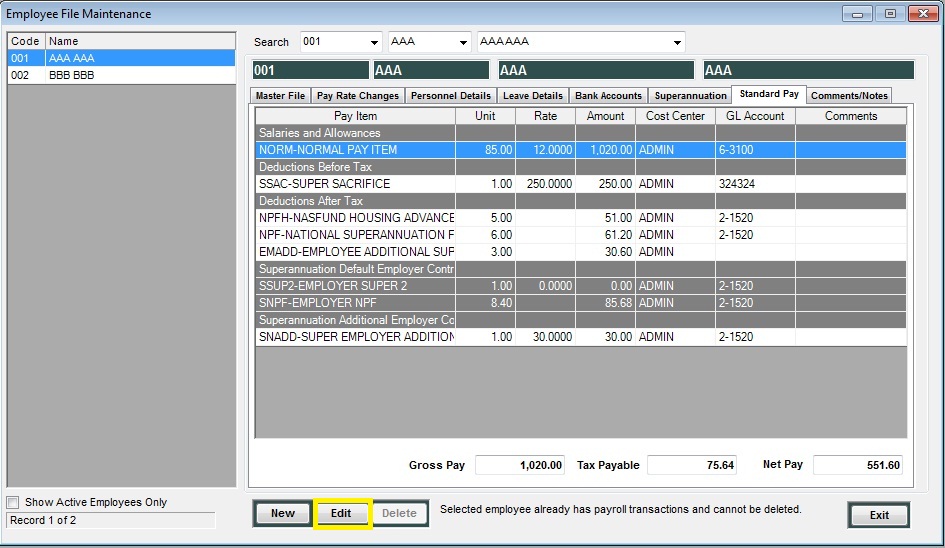 Double click on the NORMAL PAY ITEM. Be mindful of the correct Unit then change the Unit to 1 then press enter. For this example its 85 then change it to 1
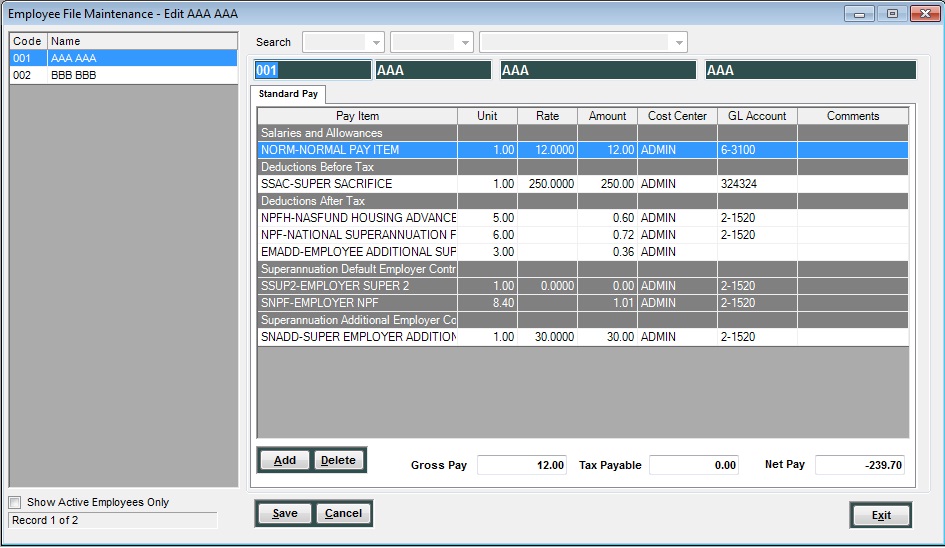 This will force the program to recompute. Bring back the correct unit, and then press enter. In this example from 1 to 85 then press enter
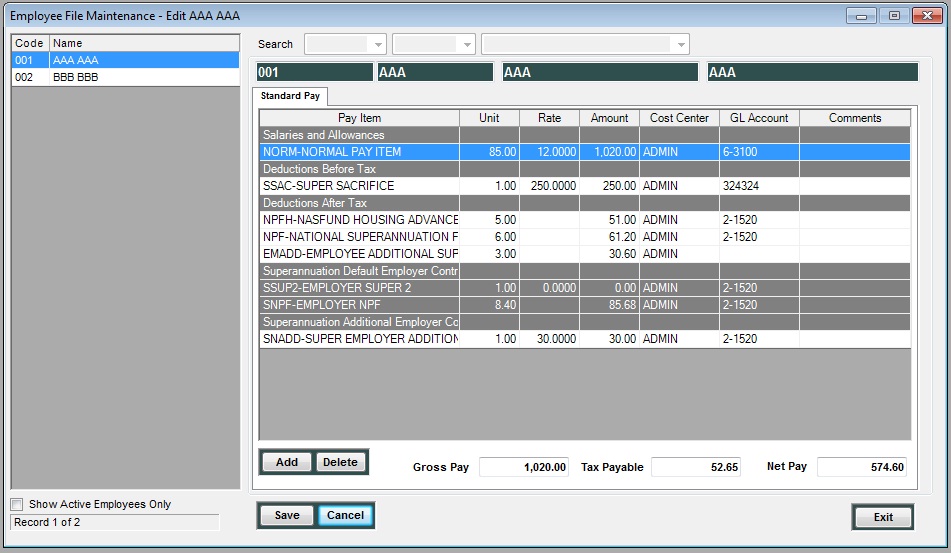 Press Save
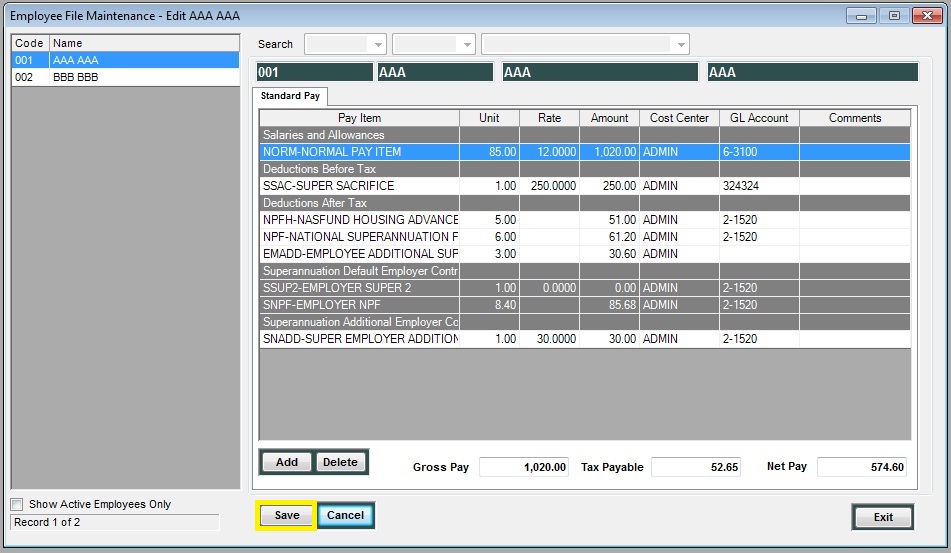 Repeat on all active employees.
Update your Able Payroll now! Contact Able Home and Office for more information.