

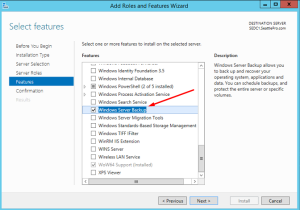
- Open Server Manager, go to Manage > Add Roles and functionalities > Features > Windows Server Backup and install it with the on-screen instructions.
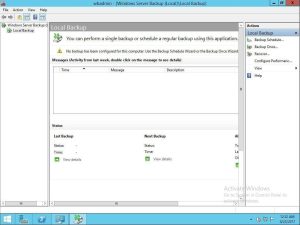
2. Navigate to “Start”>”Administrator Tools”>”Window Server Backup” and then select “Backup Once” under the Actions tab.
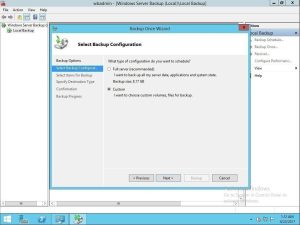
3.Tick “Custom” backup configuration to choose specific volumes, files, data for backup etc and click “Next”. Also, you can backup all server data, application and system state with “Full Server”.
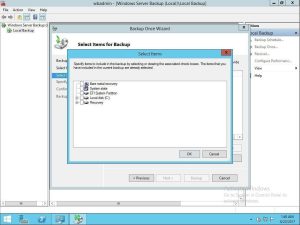
4. Click “Add Items” and select the item you want to backup, here is system state. Then, click “OK” and “Next” to move on.
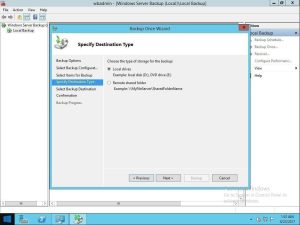
5. Tick “Local drives” to select a backup storage and click “Next”. Please connect the USB flash drive to your server in advance if you want to backup Windows Server to USB drive. Also, you can use other external devices and remote shared folder to store files. Finally, click “Backup” to start Windows Server image backup.
The backup will take a long while to complete and it depends on the amount of data you have.
I have read some excellent stuff here Definitely value bookmarking for revisiting I wonder how much effort you put to make the sort of excellent informative website