

Create a rule based on the sender recipients or conversation topic or this message to always move mail to a different folder. Rules are applied to incoming messages and can be created from any folder.
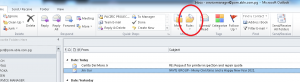
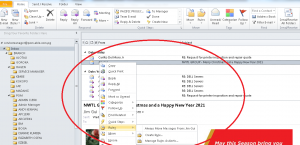
1.To quickly create a rule that moves all email from a specific sender or a set of senders to a folder, right-click a message in your message list that you want to create a rule for, and select Create rule or from quick access toolbar click the rule.
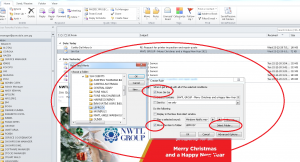
2. Choose the folder where you want all messages from that sender or set of senders to be moved, and then select OK.
Its like you read my mind! You seem to know so much about this, like you wrote the book in it or something. I think that you can do with some pics to drive the message home a bit, but instead of that, this is great blog. An excellent read. I will definitely be back.