
Step 1. Open it in the Start Menu.
Click the lower-left Start button, enter schedule in the empty box and select Schedule tasks from the results.

Step 2: Select Create Basic Task on the right.

Step 3: Type Shutdown task name and click Next.

Step 4: Choose the task starts from Daily, Weekly, Monthly, One time, When the computer.
starts, When I log on and When a specific event is logged, and then hit Next.
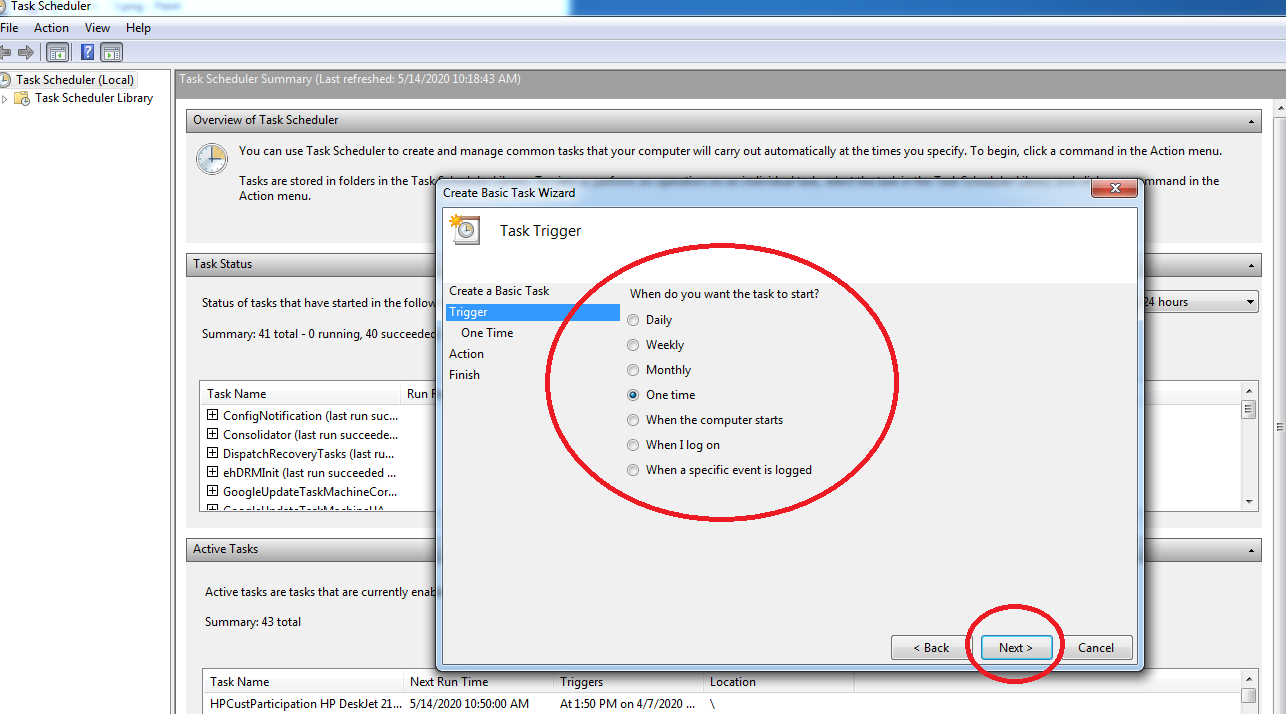
Step 5: Set the start time of the task and click Next.

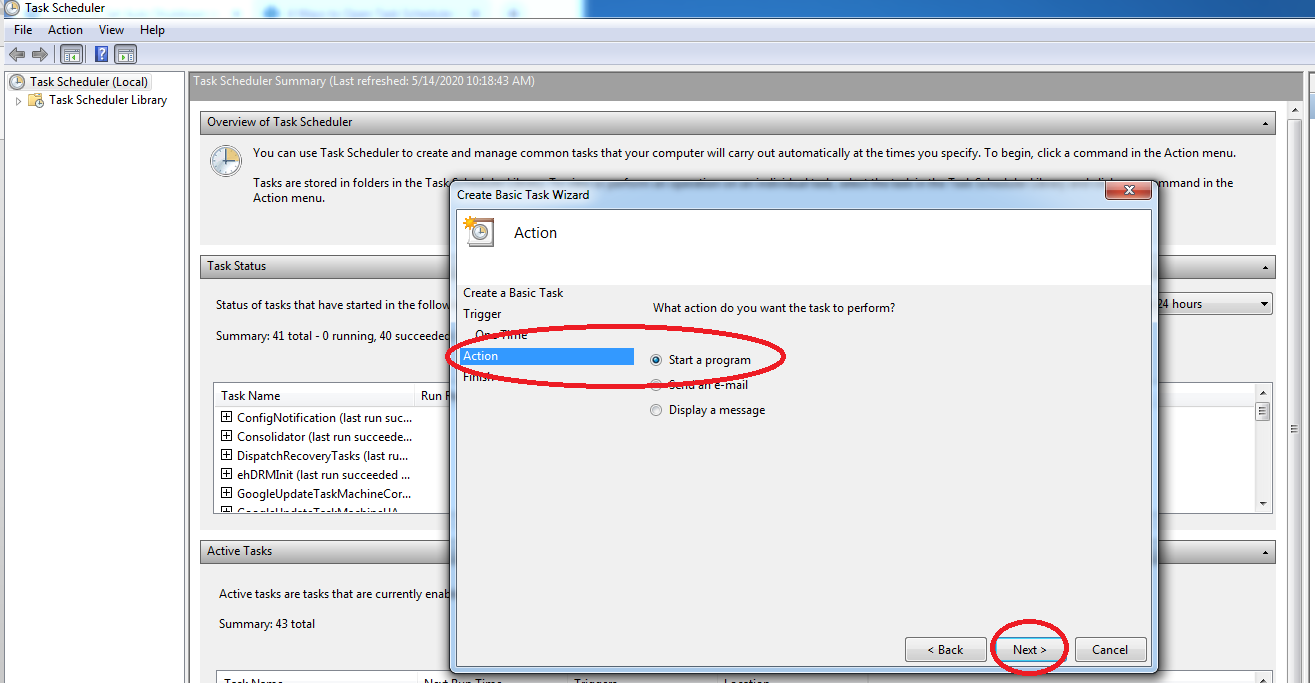
Step 6: Select Start a program and click Next.
Step 7: Click the Browse button, open Disk C/Windows/System32, choose the exe file named shutdown and hit Open.

Step 8: Enter –s as the argument and click Next. Click Finish to complete the task creation and bring the task into effect.


Typically I’m a language guy, but am fond of what a detailed guide you made here today. You could learn alot from this. Very Polished detail.
I have been reading out some of your stories and i can claim clever stuff. I will definitely bookmark your site.