

Step 1.
Open Server Manager

Step 2.
Choose Add Roles and Features

Step 3.
Click next Choose Role-Based or Feature-Based installation
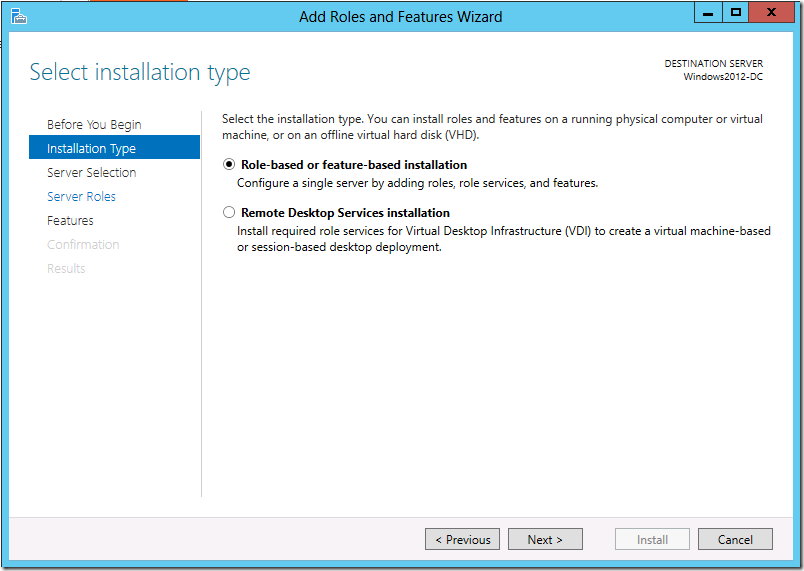
STEP 4.
Make Sure it reflects the right Ip address . If it doesn’t Close Server manager and Reopen it
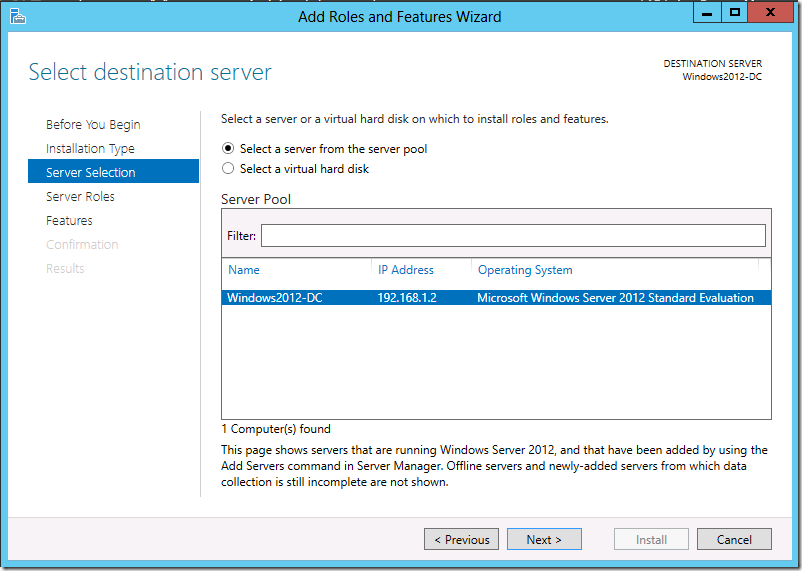
Step 5.
ADDS
Choose Active Directory Domain Services
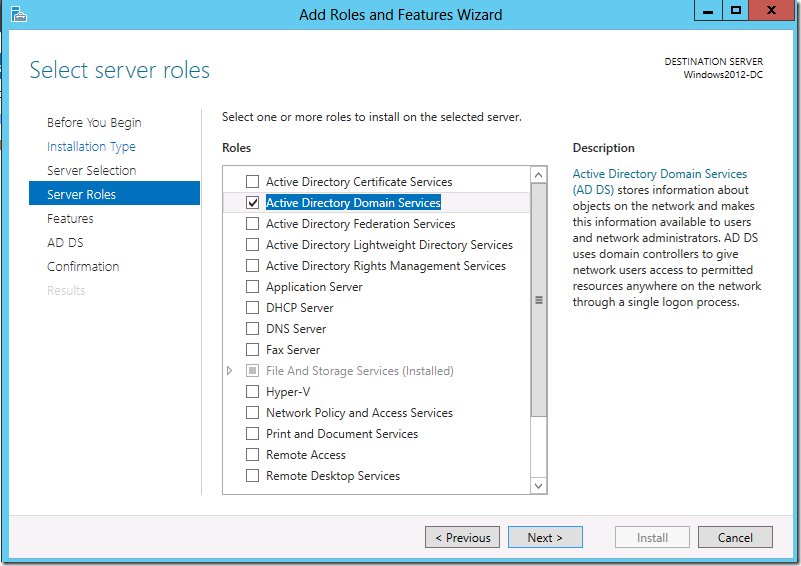
Step 6
Click next

Step 7.
Click Install

Step 8.
Click Close

Step 9.
Promote DC

Now role is added but , It’s not a Domain Controller Yet
Click on More or the Flag
Step 10.
Select Promote this Server to a Domain Controller
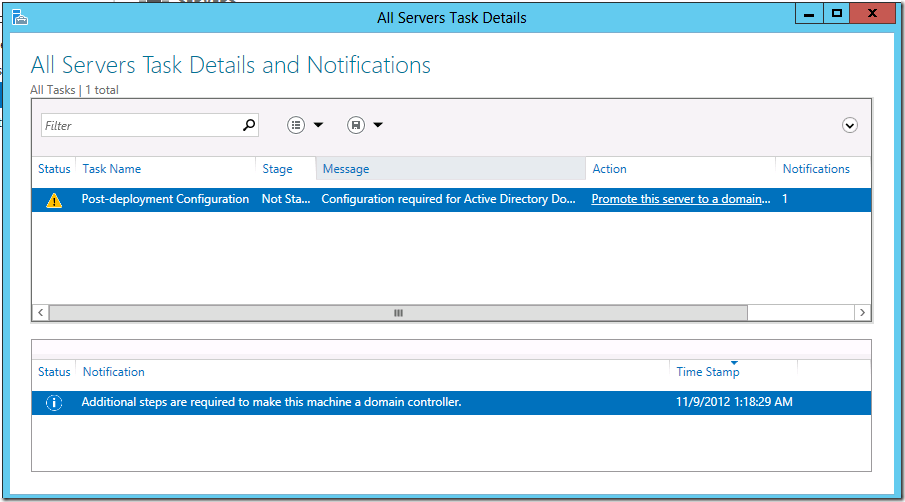
Step 11.
Building a new forest
Select “Add a New forest”
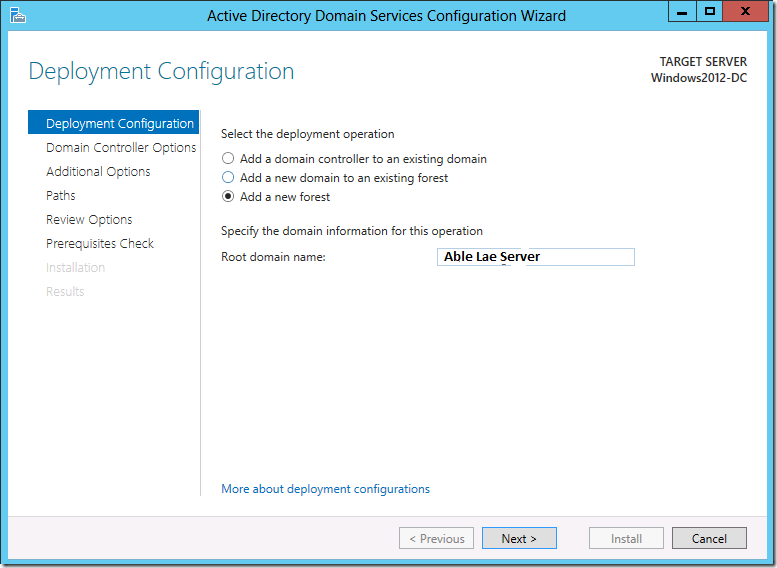
Step 12.
If don’t have function level of Windows Server 2012 just click the arrow and choose the function level
windows server 2012

Step 13.
You can skip it.
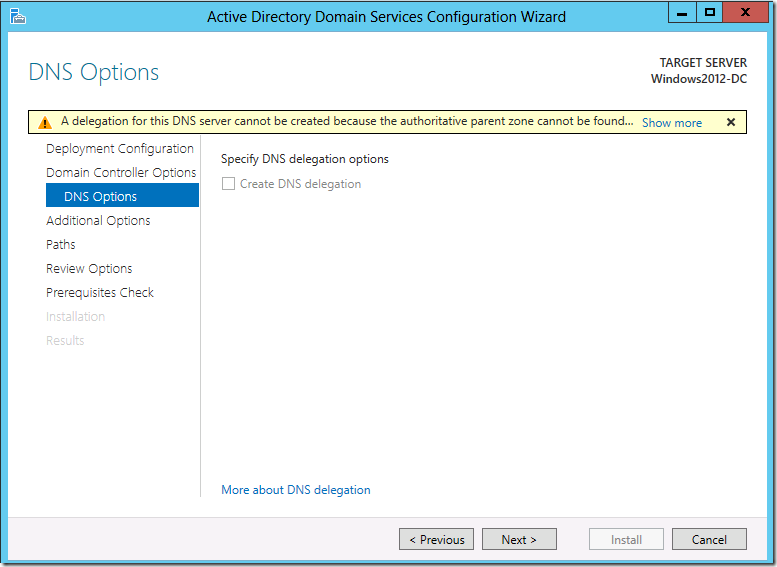
Step 14
Choose the NetBios Name
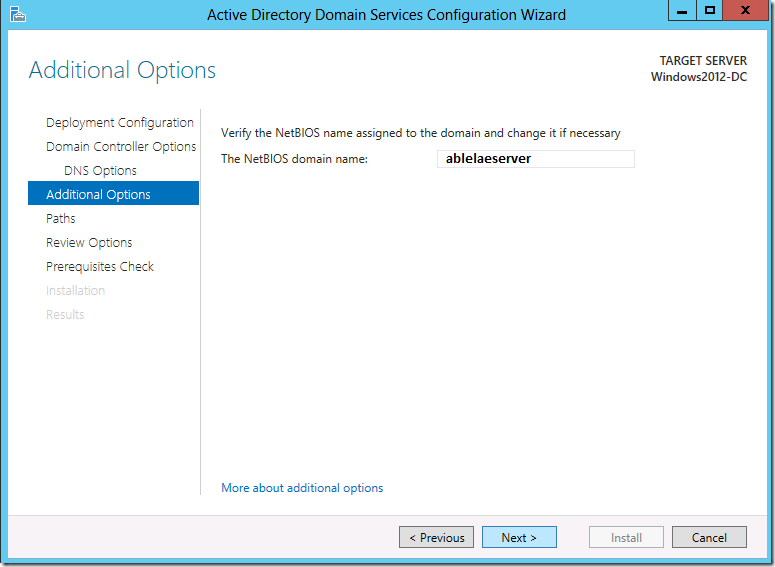
Step 15
Leave it as default
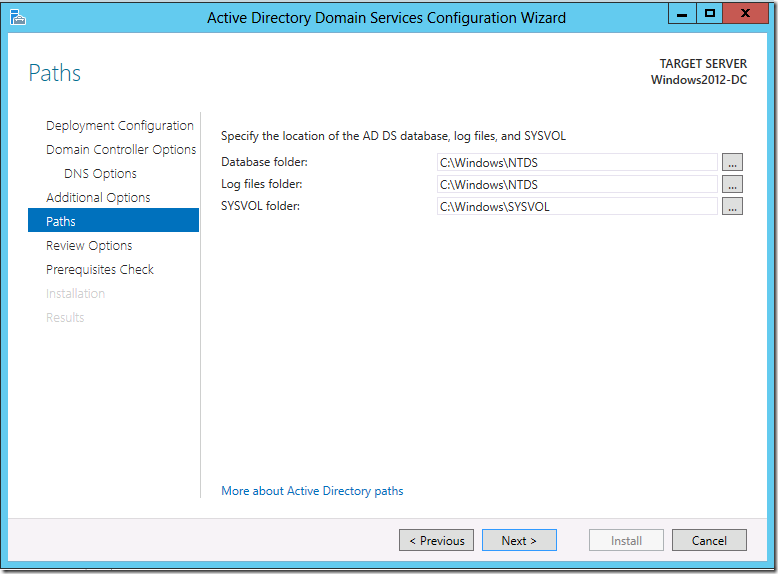
Once the installation has been completed and the wizard has been closed out, the AD DS will reboot.
Once the server has rebooted, FSMO roles can transferred to the newly added domain controller
